Developers
Quiet noisy dev machines while keeping remote debugging, virtualization, and device services honest. Validate with your usual system monitor stack after each apply.
services-manager.org
Portable Windows freeware to tune services with transparent presets—without pretending to replace your system monitor, Task Manager, or Process Hacker workflow.
Trust-oriented by design: we publish ethics, integrity signals, and recovery-first guides—because “faster” should never mean “reckless.”

“Service Optimizer breathed new life into my laptop—quieter fans and snappier desktop after Safe.”
“Love the clear presets and one-click apply. Tweaked profile was the sweet spot for my daily driver.”
“Portable, fast, and respectful of what it changes—pairs perfectly with Process Explorer when I want proof.”
“Five stars for honest docs and rollback-friendly lists. Finally feel in control of Windows services.”
Windows loads many services at startup. Some are essential; others can be relaxed on specific hardware profiles. Service Optimizer focuses on startup configuration for services in curated lists—helping you reduce background work without confusing that mission with per-process scheduling.
Choose Default (current machine state), Safe (conservative), Tweaked (balanced), or Extreme (aggressive). Lists intentionally include only services considered optimizable—treat anything outside the list as “needs expert review.”
You can reset lists, save profiles, and export .reg files so you can roll back. That fits teams that already use monitoring and validation after changes.
Clarify startup types, states, and list membership before you apply batch changes.
Details
Map Service Optimizer’s service reductions to what you see in Task Manager, Resource Monitor, or Process Hacker.
Details
Save lists, export registry artifacts, and use supported command-line switches where available.
Details
Real screenshots from Service Optimizer—how presets, per-service edits, and portable lists look on your desktop.
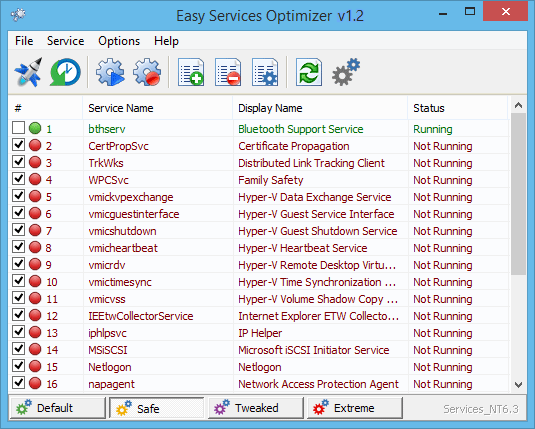
Service Optimizer is portable freeware to optimize services for almost all Windows versions (except for Windows 98 and earlier). It does not require any technical knowledge and is safe to use because it only changes the startup state of each service, and settings are easy to restore.
You can customize a pre-selected list, or create your own.
How this pairs with Task Manager & monitors →By clicking the Add button, you can add a new service to the list. You can edit an existing service by using the Edit selected service button. In the Edit Service dialog, you can change the startup type, restore type, or change the state of a pre-set group.
Full inspection workflow →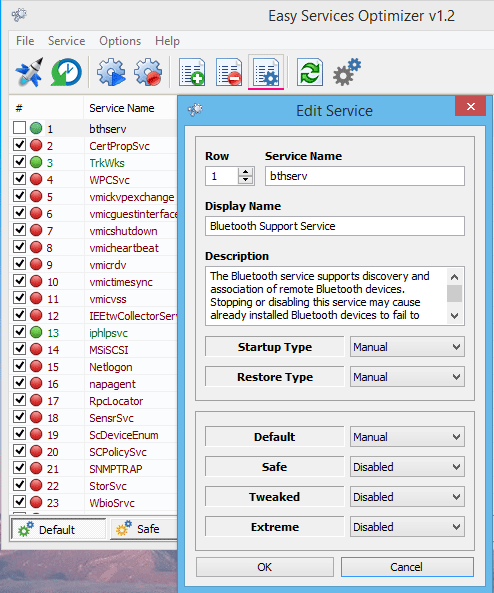
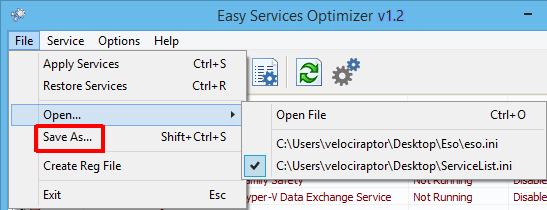
On the same menu, you can create a .reg file or open a saved services list, and choose one to edit, or apply.
Exports, lists, and CLI details →Quiet noisy dev machines while keeping remote debugging, virtualization, and device services honest. Validate with your usual system monitor stack after each apply.
Use portable execution, saved lists, and documented reset paths for repeatable baselines across lab fleets—without confusing services policy with Autoruns-style startup auditing.
Pair Service Optimizer with Process Hacker or Process Explorer when investigating “who is still waking the CPU?”—services and processes answer different questions.
| Tool | Primary surface | Best when… |
|---|---|---|
| Service Optimizer | Windows services startup tuning | You want portable presets and reversible lists for service-heavy latency. |
| Process Hacker / Process Explorer | Processes, threads, handles, DLLs | You need deep inspection of who is burning CPU, RAM, or disk—classic Task Manager upgrades. |
| Sysinternals Autoruns | Logon, Explorer, Winsock, codecs, drivers | You are chasing persistence across dozens of autostart locations—not the same problem as service defaults. |
| Process Lasso | Process rules, priorities, power profiles | You want continuous process governance; still complements service tuning. |
Other product names are used only to explain categories. Trademarks belong to their respective owners.
No. It targets Windows services startup configuration. Process tools remain essential for thread-level diagnosis.
It is the highest-risk preset tier. Use it only with backups, checkpoints, and a rollback plan—see guides.
Heuristics misfire on powerful sysadmin actions. Verify publisher, hashes, and download source—details on FAQ and download.
Some download pages list MD5 or SHA1 for the binary. A hash helps you spot a bad copy—it is not a substitute for common sense. See integrity.